
The steps for configuring Trino with Hue depend on your ODP version.
ODP 3.3.6.5-1 and later
Starting with ODP 3.3.6.5-1, you can configure Trino integration directly from the Hue mpack.
If Trino is already installed in the cluster:
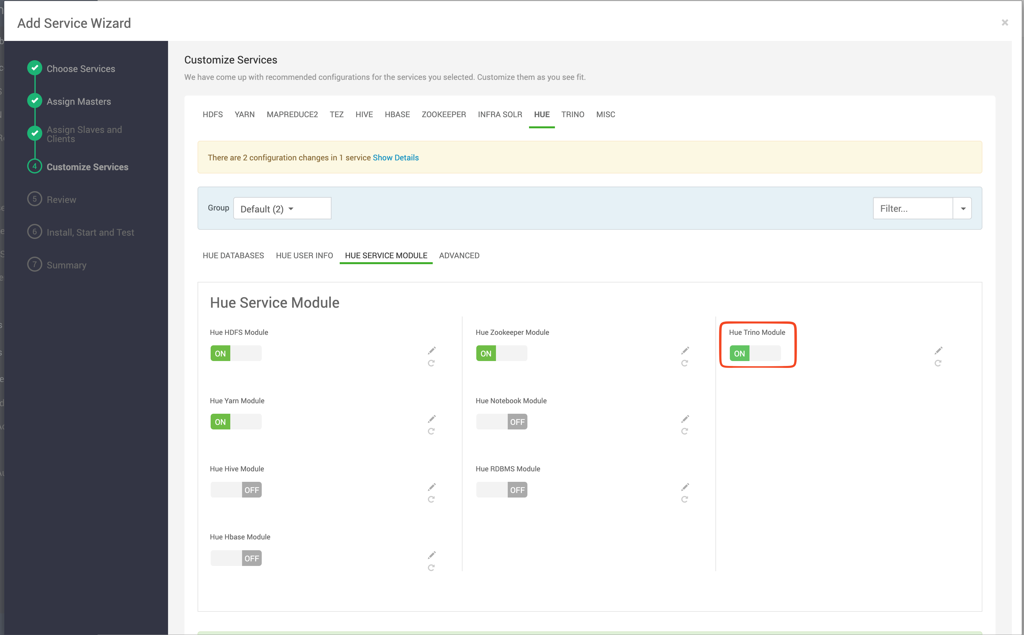
In the Ambari UI, go to the Hue configuration page.
Enable the Trino module.
Configure authentication as required.
Kerberos
If you use Kerberos authentication, no additional configuration is required.
LDAP
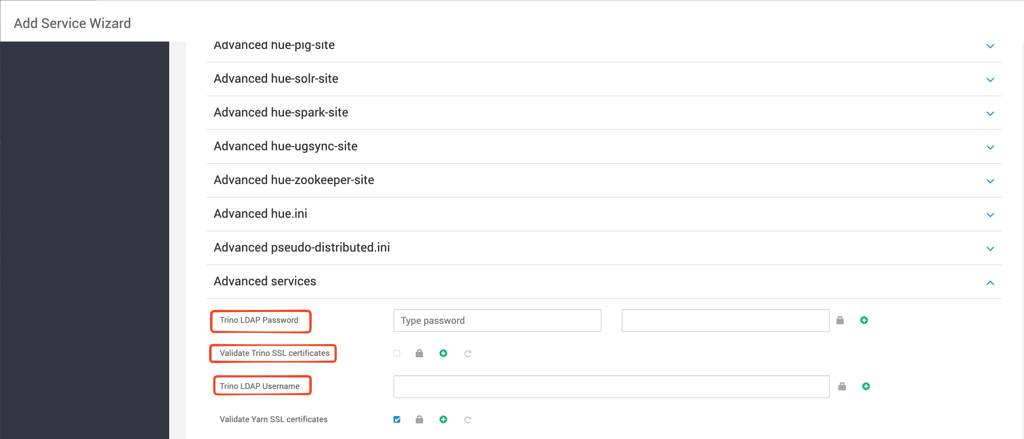
If you use LDAP authentication, configure:
Trino LDAP Username
Trino LDAP Password
Configure SSL certificate validation
By default, Validate Trino SSL certificates is enabled.
To disable SSL certificate validation, clear Validate Trino SSL certificates.
ODP releases earlier than 3.3.6.5-1
For earlier releases, Hue supports Trino clusters configured with:
LDAP authentication
No authentication
To configure the connection, add the Trino interpreter under the existing [notebook] and [[interpreters]] sections in hue.ini:
You can also use auth_password_script to specify a script that returns the password.
In releases earlier than ODP 3.3.6.5-1, an upstream Hue issue limits Trino query results to 100 rows. Hue might also report a successful query as Failed. These issues are resolved in ODP 3.3.6.5-1.