
Use the search bar on the Nodes page to find node metrics or records quickly.
Steps
In the Pulse UI, go to Nodes > Summary, and locate the search bar.
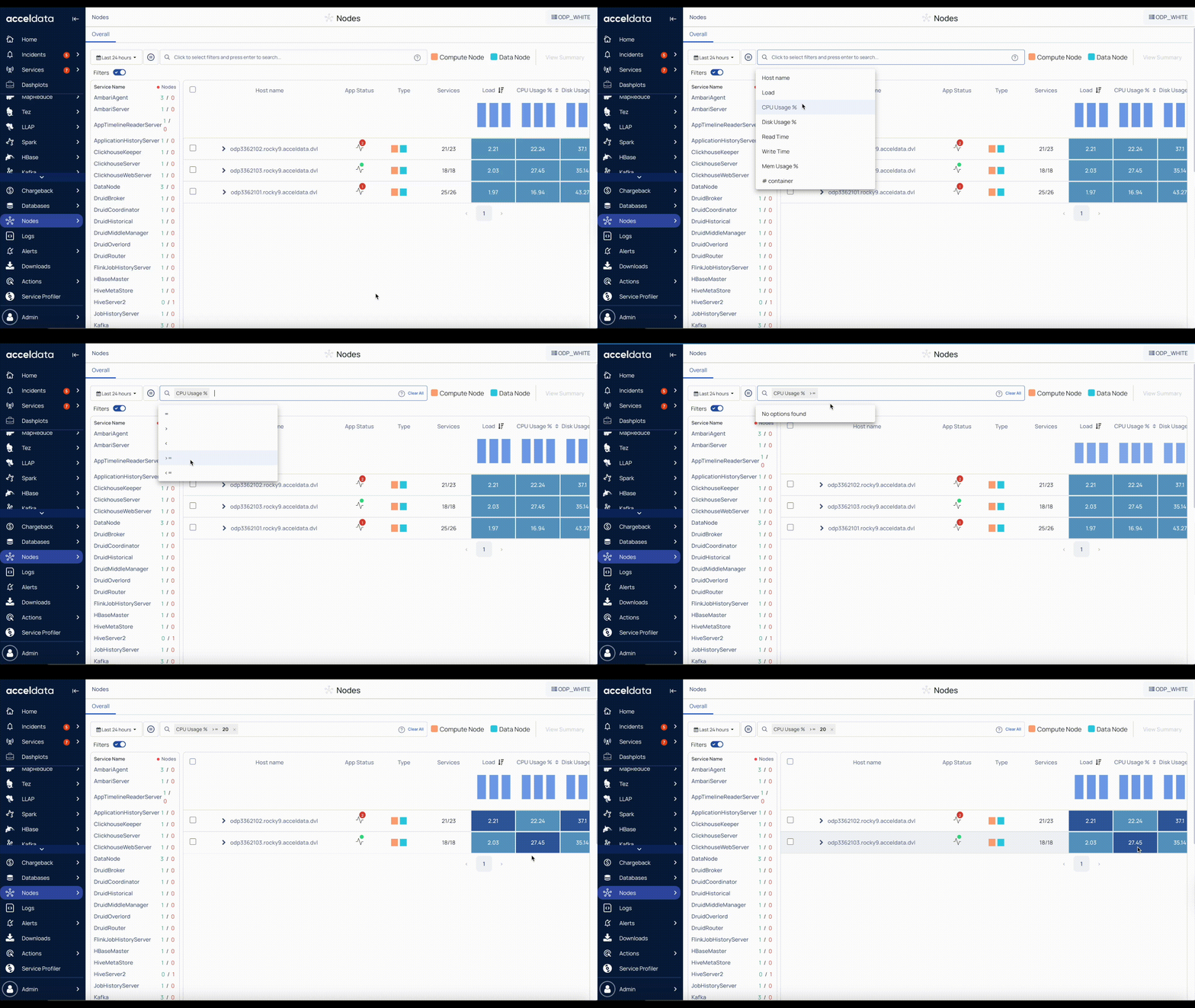
In the search bar, select the search parameter from the drop-down menu that matches the metric or record you want to find and enter the value.
Example:
To find a specific host, select Hostname, choose =, and enter or select the host name.
To find hosts where CPU usage is greater than x percent.
Press Enter to execute the search and view matching metrics or records.
Best Practices
Use exact values for accurate results.
For the String Data type fields, you can use the =~ operator. This operator allows you to search strings by entering partial strings. You can also use regular expressions to search for a required value.
Combine multiple parameters to refine your search.
For guidelines and examples for searching records, see Search and Analyze Records.