
Actions enable administrators to automate operational tasks across the data ecosystem using predefined runbooks. An action plan defines a workflow that executes one or more runbooks to perform administrative, troubleshooting, validation, and remediation tasks without manual intervention.
Actions can be executed manually or scheduled to run automatically at specified intervals.
Actions should be configured and tested carefully because they can modify cluster and application state.
Navigation
In the xObserve UI, navigate to Actions.
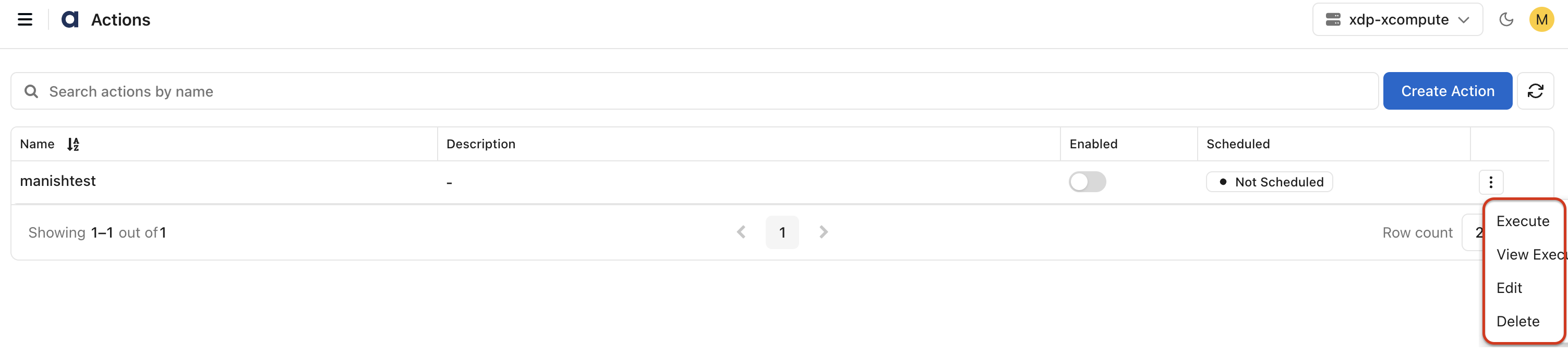
The Actions page displays all configured action plans.
Use the search field to locate an action plan.
Click Create Action to create a new action plan.

Actions Overview
The Actions page provides a centralized view of all configured action plans.
The page displays the following information:
Name: Displays the action plan name.
Description: Displays the action plan description.
Enabled: Indicates whether the action plan is enabled for execution.
Scheduled: Displays the scheduling status of the action plan.
Search: Allows you to search for existing action plans.
Administrators can enable or disable action plans using the toggle control.
Set Up an Action Plan
Create action plans to automate operational workflows using one or more runbooks.
On the Actions page, click Create Action.
Expand the Create Action Plan section.
Drag and drop one or more runbooks into the Actions Workflow.
For details about configuring action runbooks, see Create an Action Plan.
Configure notifications. For details, see Configure Notifications.
Configure scheduling. For details, see Schedule an Action Plan.
Configure timeout settings. For details, see Schedule an Action Plan.
Click Save Action Plan.
The action plan is added to the Actions page and becomes available for execution.
Action Plan Options
For each action plan, use the available options menu to perform administrative actions.
Available options include:
Execute: Runs the action plan immediately.
View Executions: Displays execution history for the selected action plan.
Edit: Edits the action plan.
Delete: Removes the action plan from the system.
Executions
The Executions page displays the execution history of action plans, including execution status, workflow progress, retry attempts, and execution timelines.
Each time an action plan is executed, an entry is created on the Actions > Executions page.
To view and monitor action plan executions, see View Action Executions.