
Schedule an action plan to run automatically at specified intervals using a cron expression. Scheduled execution enables administrators to automate recurring operational tasks without manual intervention.
The scheduling framework uses standard Linux cron expressions to define execution frequency.
Steps
In the xObserve UI, navigate to Actions > Actions.
Click Create Action.
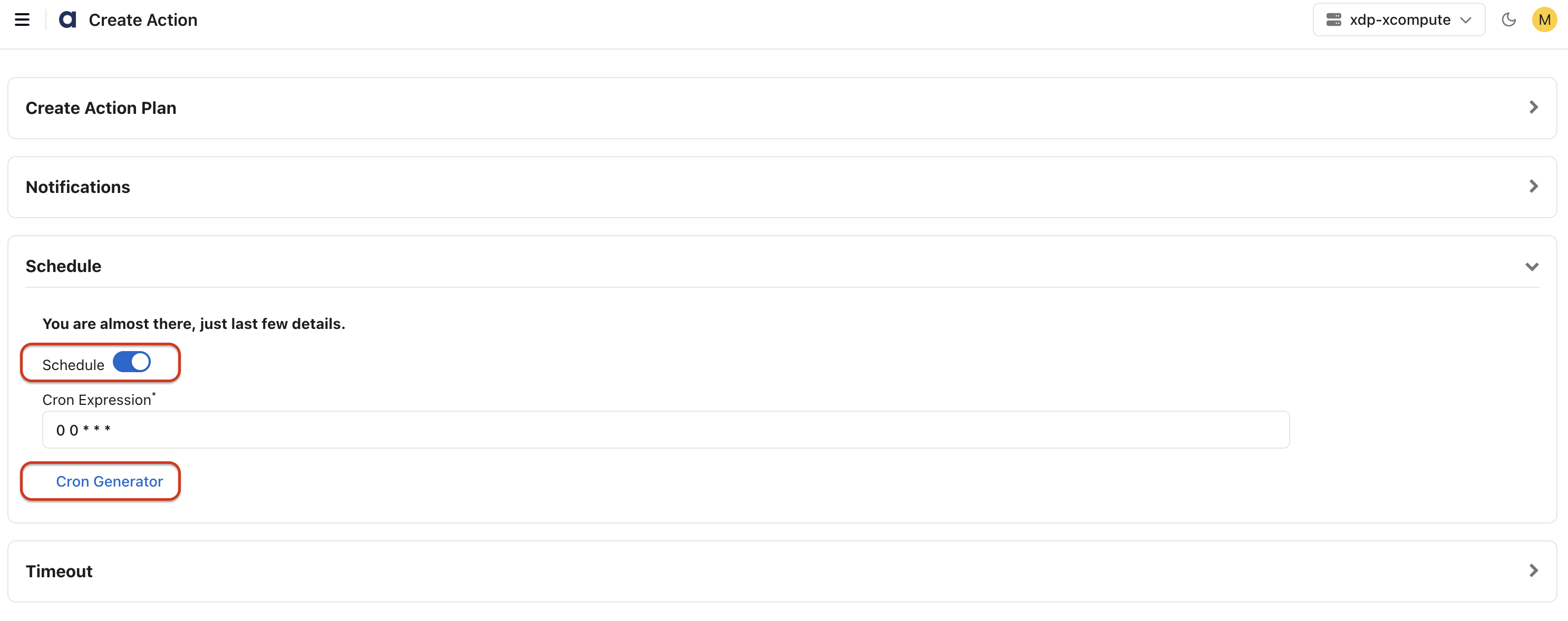
On the Create Action page, expand the Schedule section.
Enable Schedule.
Configure the schedule using one of the following methods:
Enter a cron expression manually.
Click Cron Generator and generate a cron expression by specifying the required scheduling parameters.
Then continue by setting the timeout value and click Save Action Plan.
Enter the action plan details and click Submit.
The action plan is saved and executes automatically according to the configured schedule.
The action plan executes automatically according to the configured schedule.
Use the Cron Generator
Use the Cron Generator to create a cron expression by specifying scheduling parameters such as:
Minutes
Hours
Days
Months
The generated cron expression is automatically populated in the schedule configuration.
Best Practices
Validate the cron expression before enabling scheduled execution.
Test the action plan manually before scheduling it.
Configure notifications to receive execution status updates.
Periodically review scheduled action plans to ensure they remain relevant.