
Configure a timeout value to control the maximum duration an action plan is allowed to run. If the execution exceeds the configured timeout period, the action plan is automatically terminated.
Setting an appropriate timeout helps prevent long-running or stalled workflows from consuming resources indefinitely.
Configure Timeout
In the xObserve UI, navigate to Actions > Actions.
Click Create Action.
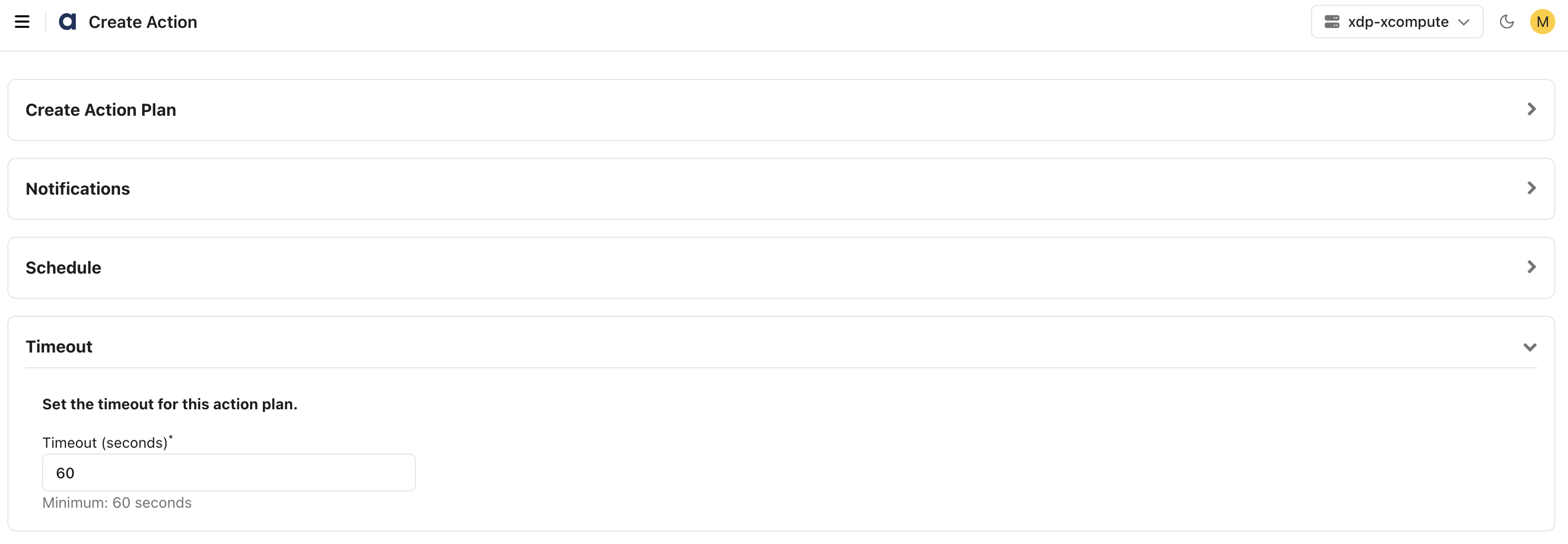
On the Create Action page, expand the Timeout section.
In the Timeout (seconds) field, enter the maximum execution time in seconds.
The minimum supported timeout value is 60 seconds.
Click Save Action Plan.
Enter the following details:
Name: Specify a name for the action plan.
Description: (Optional) Describe the action plan.
Click Submit.
The action plan is saved and appears on the Actions page.
After Saving an Action Plan
After the action plan is created, you can perform the following actions on the Actions page.
View Details: Review the action plan configuration and workflow.
Enable or Disable: Control whether the action plan can be executed.
Execute: Run the action plan manually.
Edit: Modify the action plan configuration.
Schedule: Configure automated execution using a cron schedule.