
xObserve Alerts help you monitor the health and performance of your data infrastructure. Alerts continuously evaluate configured conditions against collected metrics and notify you when those conditions are breached.
An alert monitors a metric and generates an incident when a defined condition remains breached beyond a configured threshold.
Key Concepts
Term | Description |
|---|---|
Alert | A monitoring rule that evaluates a condition against one or more metrics on a scheduled basis. An alert includes the condition, evaluation settings, severity, and notification channels. |
Incident | A record created when an alert condition remains breached beyond its configured threshold. Multiple occurrences of the same alert can be consolidated into a single incident. |
Metric | A measurable value used to evaluate an alert condition. Metrics belong to an alert category. |
Alert Category | A logical grouping of related metrics, such as CPU, Disk, Network, Endpoint Check, or No Data monitoring. |
Severity | Indicates the importance of an alert. Available levels are Low, Medium, High, and Critical. |
Notification Channel Group | A collection of notification destinations, such as Email, Slack, or Webhook integrations, that receive alert notifications. |
Threshold | Defines how long or how often a condition must remain breached before an incident is created. Thresholds can be based on duration or consecutive evaluations. |
Pause Notifications | Temporarily suppresses notifications while continuing to evaluate alerts and record incidents. |
Maintenance Window | Temporarily suspends alert evaluation, preventing new incidents from being generated during the maintenance period. |
Alert Lifecycle
Create an alert.
xObserve evaluates the alert at the configured interval.
When the condition breaches, the system checks the configured threshold.
If the threshold is exceeded, an incident is created, and notifications are sent.
When the condition recovers, the incident is automatically resolved.
Alert Use Cases
You can create alerts for a wide range of scenarios, such as:
Monitoring YARN MapReduce jobs—for example, the number of mappers or reducers
Detecting Spark jobs that exceed a defined completion time
Monitoring CPU, disk, network, or application-level performance
Tracking resource usage across services and applications
Pulse also provides a collection of ready-to-use alerts to help you get started quickly.
Alert Types
xObserve supports the following alert types:
Stock Alerts – Preconfigured alerts provided by xObserve for common monitoring scenarios.
Predefined Alerts – Built-in alerts that use predefined monitoring logic and configurable parameters.
Custom Alerts – User-defined alerts created to monitor environment-specific conditions.
For details about stock and predefined alerts, see Built-in Alerts: Stock and Predefined.
For details about creating custom alerts, see Create an Alert.
Alert Details
On the Alerts page, you can see the list of stock alerts, custom alerts created, and predefined alerts.
You can see the following details about an alert.
Alert Name: Name of the alert
Notify On: Shows the notified channels.
Severity: Alert severity level
Execution Interval: How often the alert is evaluated
Latest Triggered: Most recent time the alert was triggered
Latest Status: Current state of the alert
Enabled: Indicates whether the alert is enabled.
Paused: Indicates whether the alert is paused.
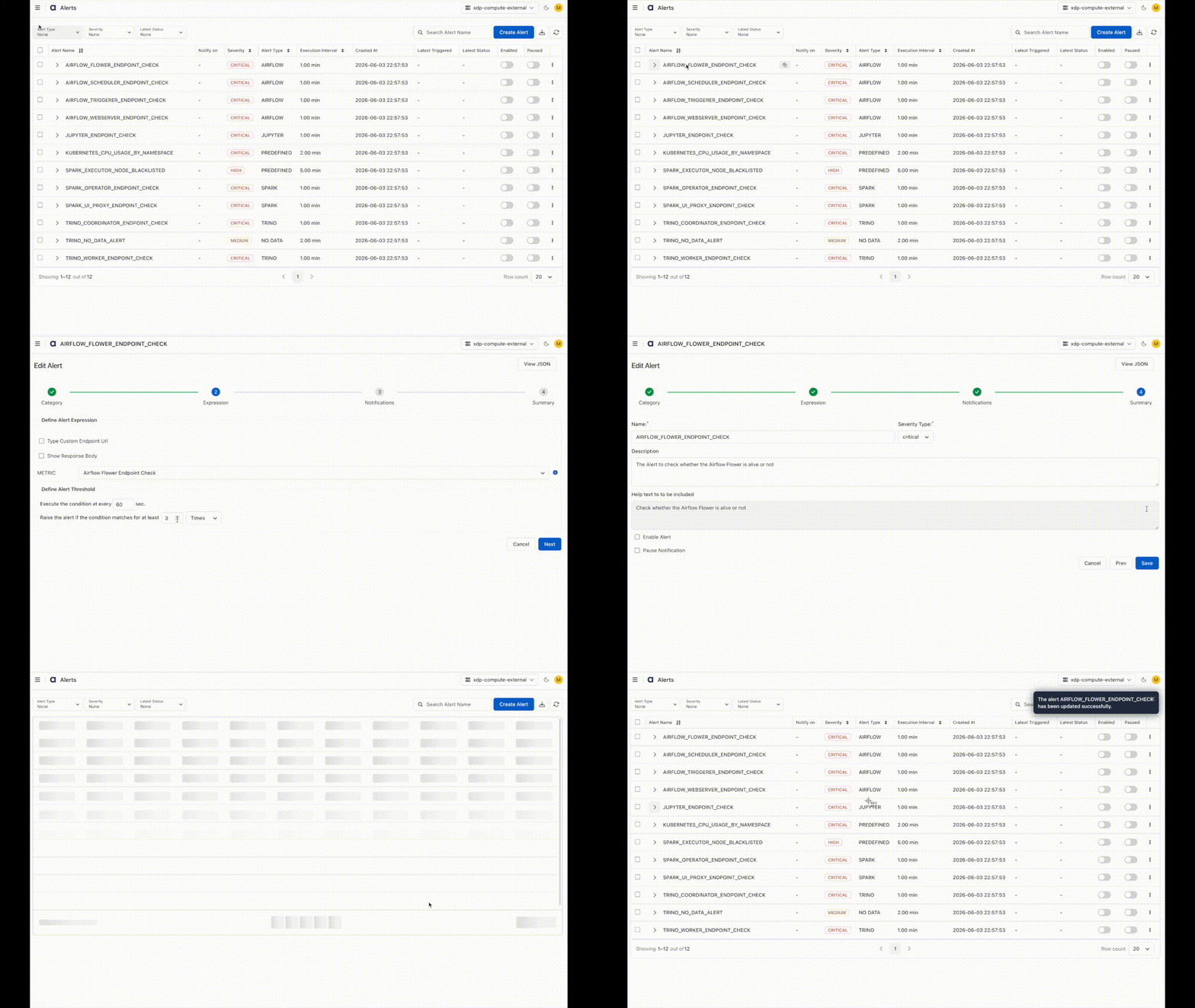
You can hover over an alert, click the three dots, and choose the following options:
Clone: Creates a duplicate of the alert. You must provide a different name for the cloned alert.
Delete: Deletes the alert.
Click on an alert name to edit an alert configuration.
Available Actions
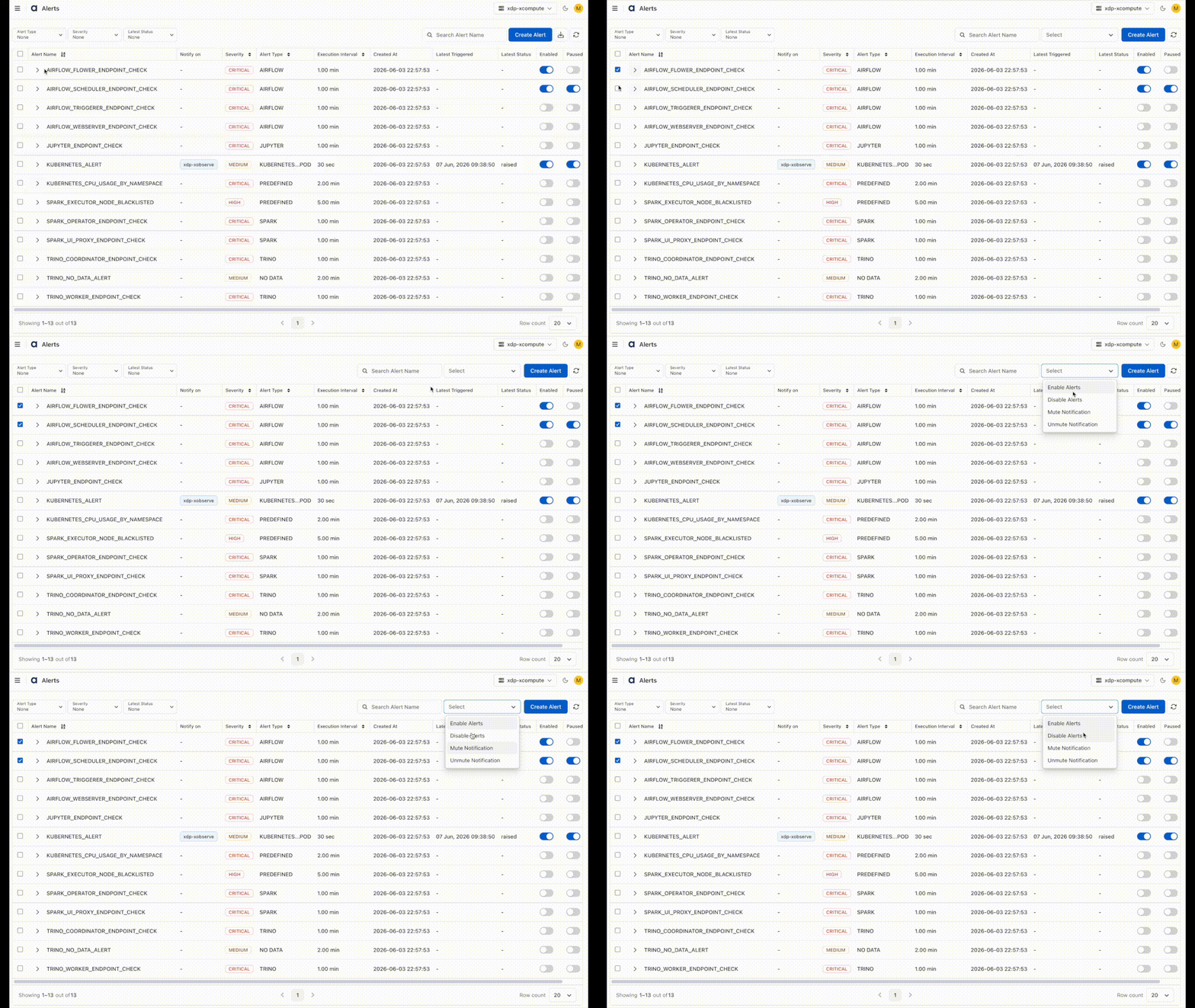
Select one or more alerts using the checkbox, click Actions for Selected Alerts, and choose any of the following actions from the drop-down menu:
Enable Alerts: Turns alerts on
Disable Alerts: Turns alerts off
Mute Notification: Silences notifications
Unmute Notification: Restores notifications
Functionalities
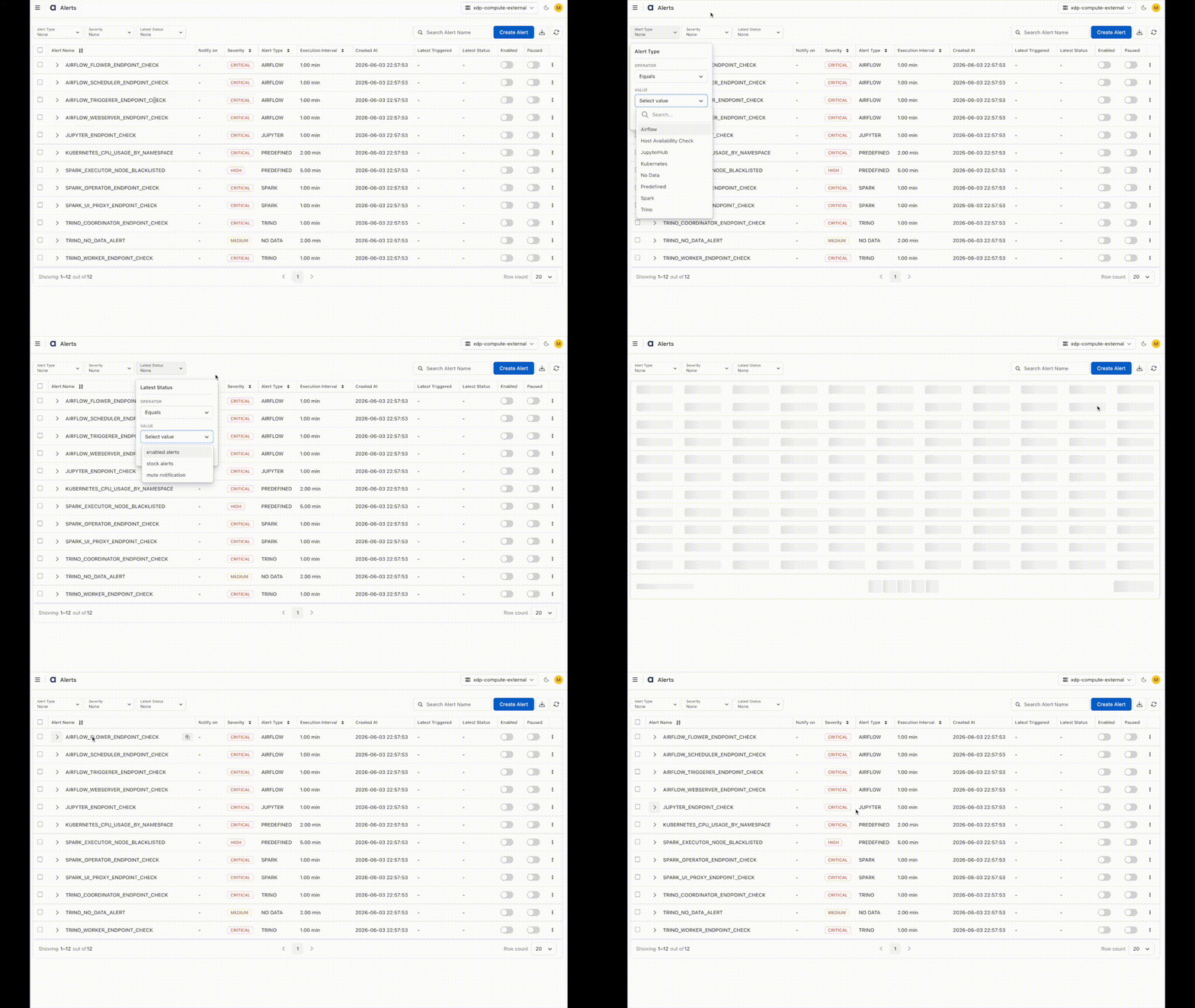
Filter Alerts
Filter by Alert Type: Filter alerts by type, such as Airflow, Ambari, CPU, and others.
Filter by Alert Severity: Filter by severity levels, including low, medium, high, and critical.
Filter by Alert Status: Filter alerts by Enabled Alerts, Stock Alerts, and Mute Notifications.
Features
The Alerts page also provides the following capabilities:
Search Alerts – Search for alerts by name.
Create Alert – Create a new custom alert.
Import/Export Alerts: Click the Import Icon to Import or export alerts.
Import Alerts – Import alert definitions from a JSON file.
Export Alerts – Export alert definitions as a JSON file.
Refresh – Reload the alert list and display the latest status information.
Pagination – Navigate through multiple pages of alerts.
Rows per Page – Control the number of alerts displayed per page.