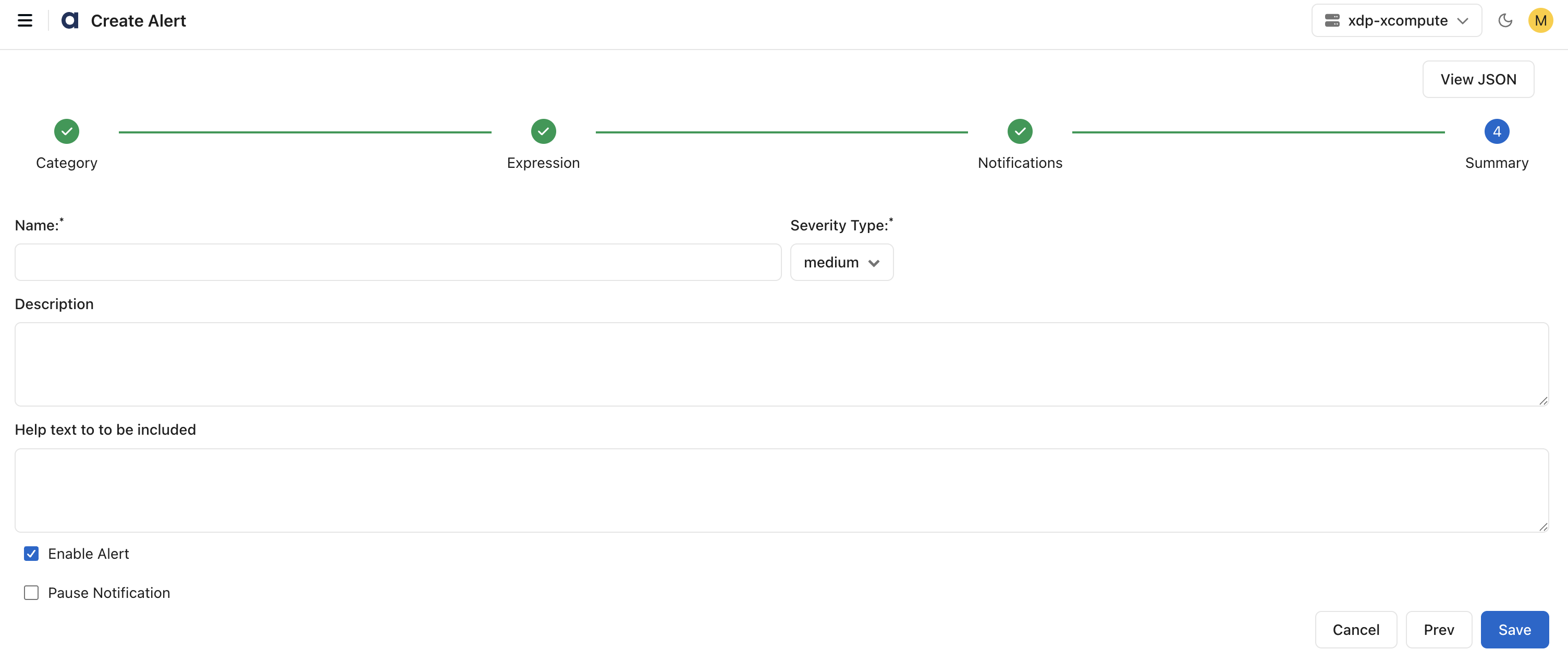
Use the Create Alert wizard to define a new alert.
Navigation
In the xObserve UI, go to Alerts in the left pane.
On the Alerts page, click Create Alert.
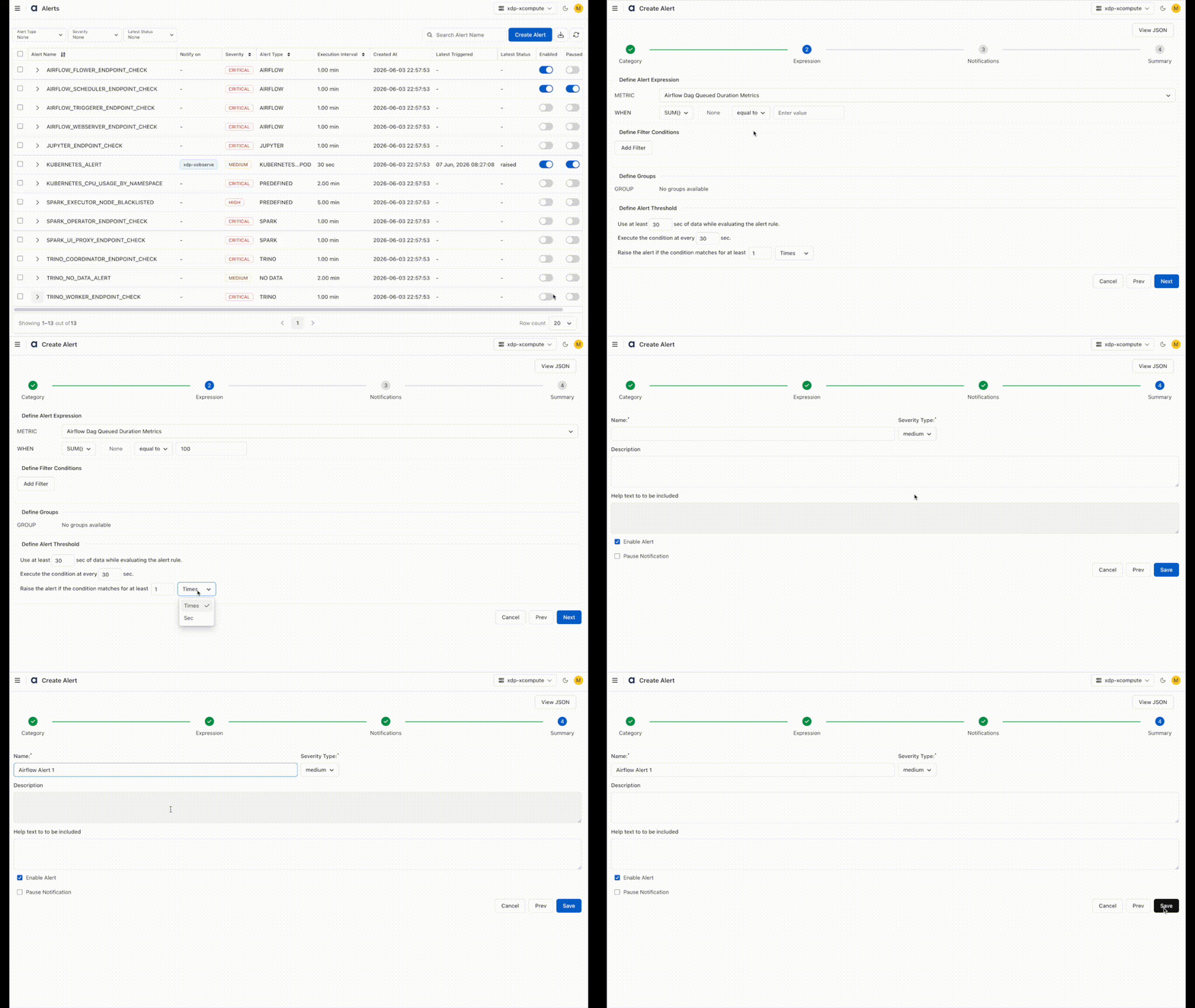
The wizard consists of four steps.
Linking an action to a specific alert is currently not supported.
Select Category
Choose the category that contains the metric you want to monitor.
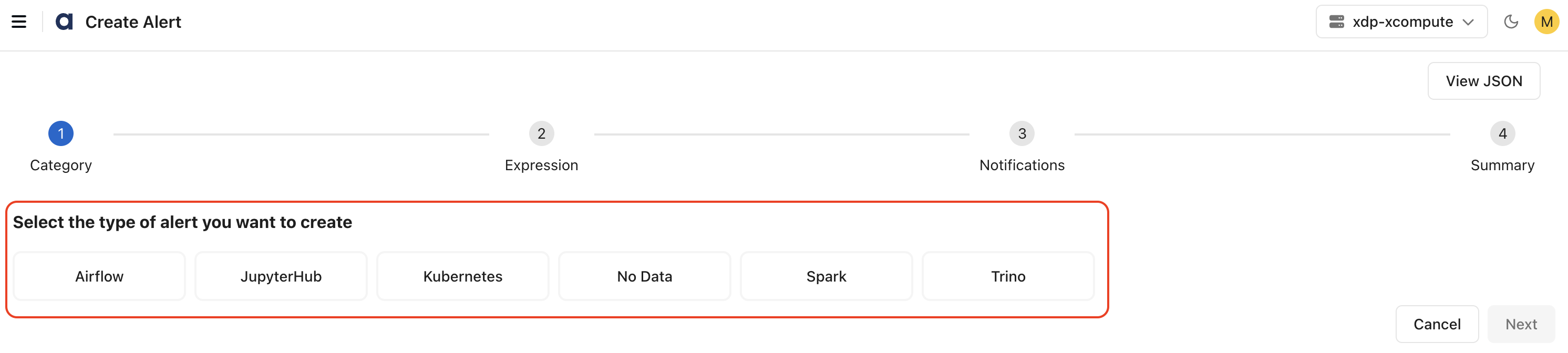
Examples include:
Service-specific metrics for Airflow, Spark, etc.
Infrastructure metrics such as Kubernetes
No Data monitoring
Define Alert Expression
Define the Metric
Choose the metric to evaluate.
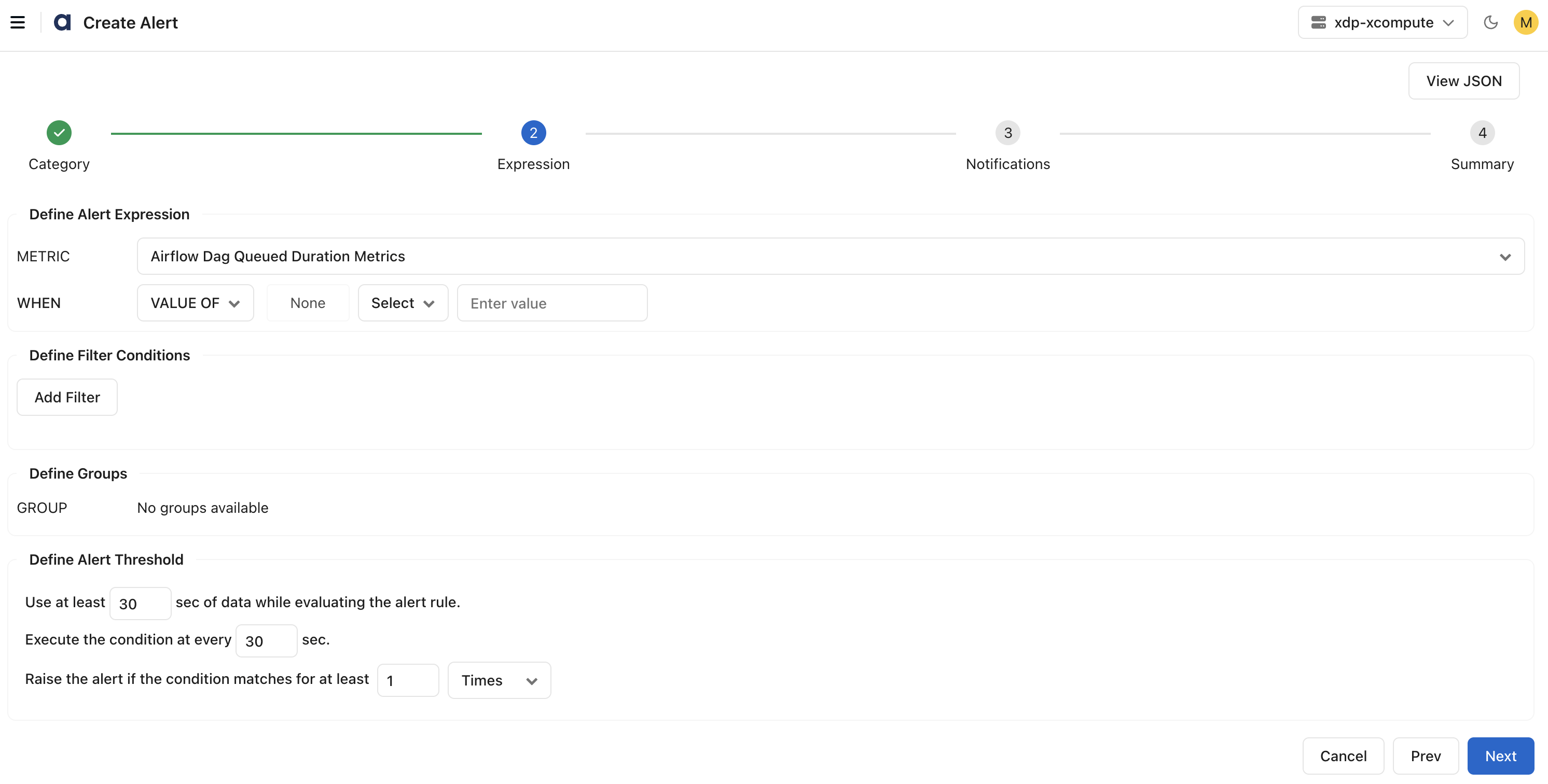
Define the Condition (When)
Specify the alert condition by selecting:
Aggregation Function – How the metric is calculated (e.g., Avg, Sum, Max, Min)
Comparison Operator – How to compare the metric value (e.g., >, <, =, !=)
Threshold Value – The value that triggers the alert
Examples:
Avg(CPU Utilization) > 90
Min(Disk Space %) < 10
Sum(Error Count) > 100
Optional Filters
Apply filters to narrow the data being evaluated.
Group By Dimensions
Evaluate conditions independently for specific entities such as hosts, clusters, or services.
Define Alert Threshold (Evaluation Settings)
Define:
Evaluation Window: Amount of historical data used during evaluation. The default is 30 seconds of data.
Execution Interval: How frequently the alert runs. The default is the condition executes at every 30 seconds.
Alert Threshold: Number of consecutive breaches or duration required before an alert is raised.
Configure Notifications
Select one or more notification channels.
Steps to Create New Channel Groups
Go to the xDP UI and select Alerts in the left pane.
Click Alerts > Channel Groups.
Click New Channel Group.
Add the details.
Once the channels are created in the xDP UI, they get listed here.
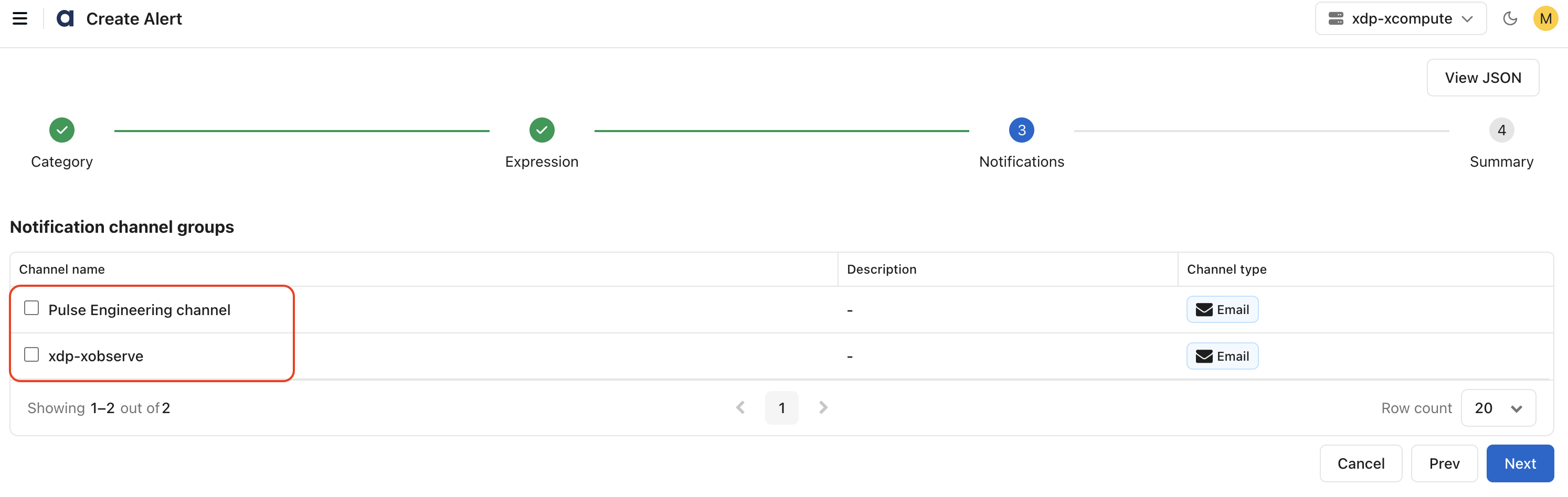
Supported notification methods may include:
Email
Slack
Webhooks
Other configured integrations
Multiple channel groups can be assigned to the same alert.
Review and Save
Provide the alert metadata:
Name: Unique alert name.
Severity: Low, Medium, High, or Critical.
Description: Optional description of the alert.
Help Text: Optional remediation guidance shown with incidents.
Enable Alert: Controls whether the alert begins evaluating immediately.
Pause Notifications: Optionally mute notifications after creation.
Save the alert to begin monitoring.