
The JupyterHub Cell Execution page provides visibility into notebook cell execution activity across all users.
Use this page to monitor executed cells, track execution duration, identify failed executions, and analyze notebook activity for troubleshooting and performance analysis.
Navigation
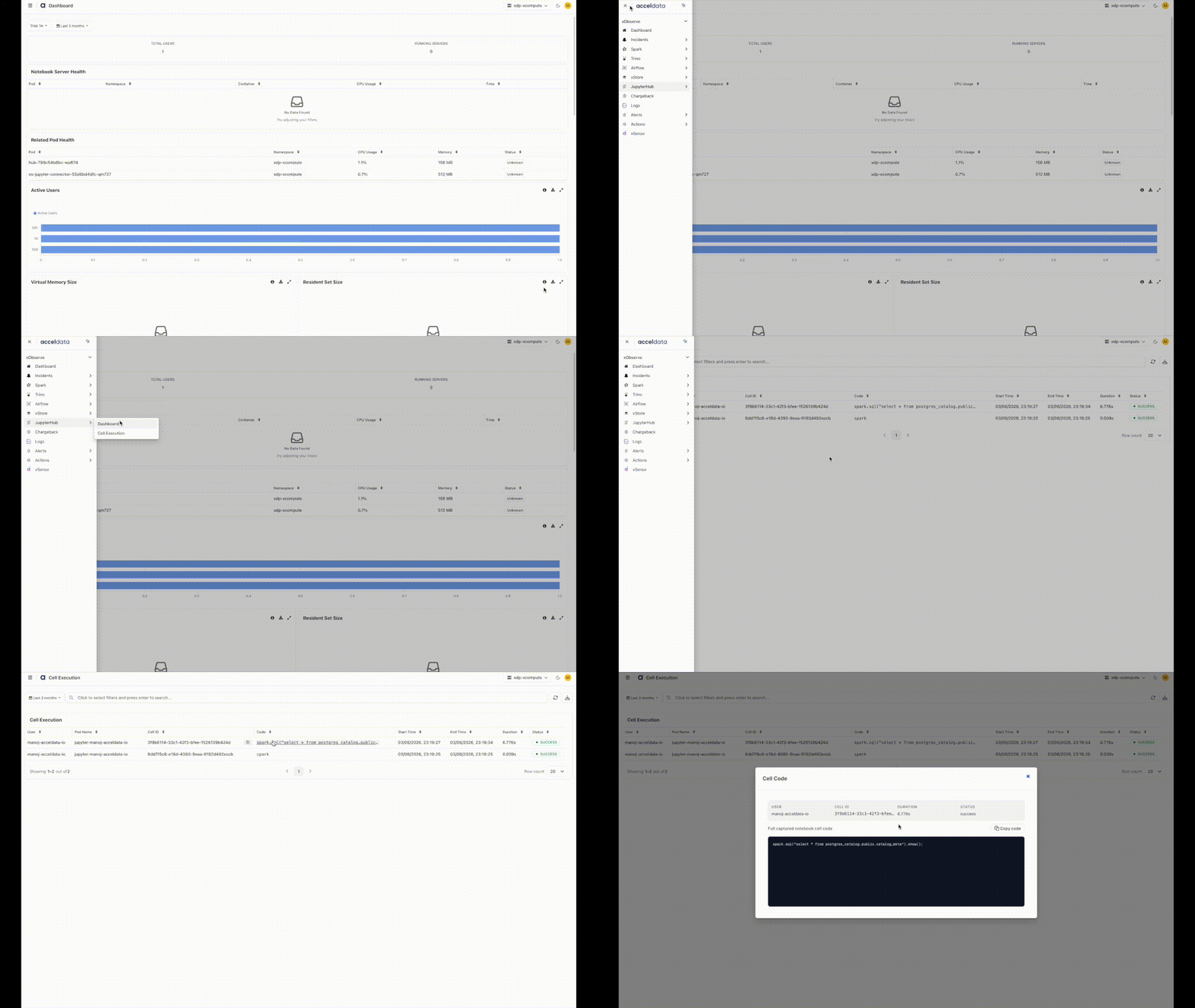
In the xObserve UI, navigate to JupyterHub from the left navigation pane.
Select JupyterHub > Cell Execution.
Select the desired cluster from the cluster selector in the upper-right corner.
The Cell Execution page opens, displaying notebook cell execution records and execution details.
Time Period
Use the Time Period selector in the upper-left corner of the page to filter cell execution data for a specific monitoring window.
Search and Filters
Use the search bar to locate specific cell executions and filter results based on available attributes such as users, notebook pods, cell identifiers, and execution status.
Cell Execution Details
The Cell Execution page displays the following information for each executed notebook cell:
User Information
User – User who executed the notebook cell.
Pod Name – Name of the notebook server pod where the cell was executed.
Cell Information
Cell ID – Unique identifier of the executed notebook cell.
Code – Source code executed within the notebook cell.
Execution Details
Start Time – Time when the cell execution started.
End Time – Time when the cell execution completed.
Duration – Total execution time of the notebook cell.
Status – Execution status of the cell, such as successful or failed.
Additional Actions
Search for specific cell executions using filters.
Sort execution records using column headers.
Refresh the page to retrieve the latest execution data.
Export execution records for further analysis and auditing.
Features
Refresh: Refresh the table to get the latest data.
Export Results: Export record details for offline analysis or reporting.
A maximum of 10,000 records can be exported in a single operation. Exporting all available records at once is not supported.
To export additional records, refine your search criteria and perform multiple export operations.